
Hey, I'm Anthony. I build DeckCheck. This is the guide I point everyone to, whether you made an account five minutes ago or you've been brewing here for a year. It covers everything you'd expect from a deck builder, and then the stuff most players never find on their own.
I keep this post current. When something on the site changes, this guide changes with it, and the date at the top tells you when I last checked it.
New here? Go top to bottom. Been around a while? Skip to Hidden features. That's where the good stuff lives.
Start here: Your first ten minutes
DeckCheck is free. Everything a deck builder normally does (building, importing, your collection, prices, playtesting) costs nothing. The smart tools use credits, and every account gets 5 free credits every day. I break down exactly what costs what at the end.
There are three ways to get your first deck in.
Import a deck you already have. Go to Decks, click New Deck, and pick a format. In the builder, open More Tools → Import. Paste a link from Moxfield, Archidekt, ManaBox, TappedOut, or MTGGoldfish, or paste a plain text list. The import keeps your format, sideboard, and maybeboard. Turn on Don't overwrite to merge cards into a deck instead of replacing it.
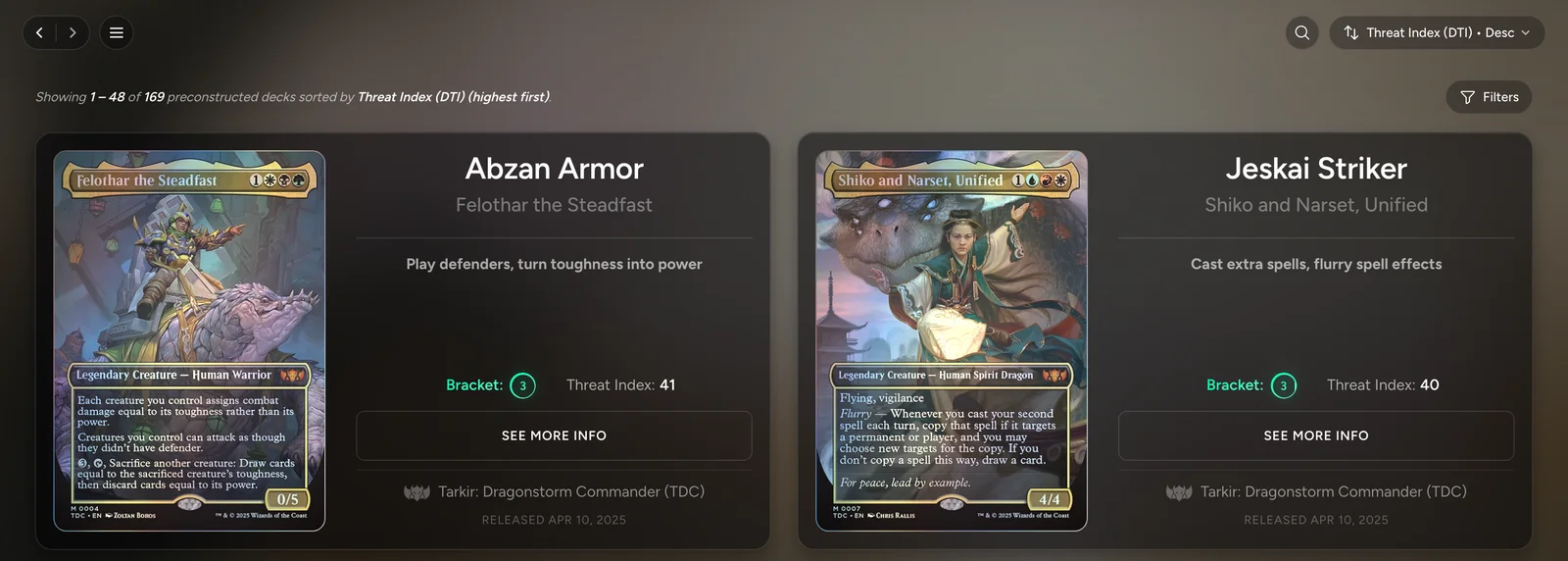
Start from a precon. Commander Precons in the menu lists every precon with its bracket and Threat Index. Open one with See More Info, then Actions → Duplicate, and you get your own copy in the builder, ready to upgrade. Duplicate works on any public deck, not just precons.
Start from scratch. Decks → New Deck, pick a format, and go. DeckCheck supports nine formats: Commander, Brawl, Pauper Commander, Standard, Pioneer, Modern, Legacy, Vintage, and Pauper. Commander gets the deepest support, and a few tools are Commander-only. I'll call those out as we go.
The builder: everything you'd expect
This is where you'll spend most of your time. Here's what's where.
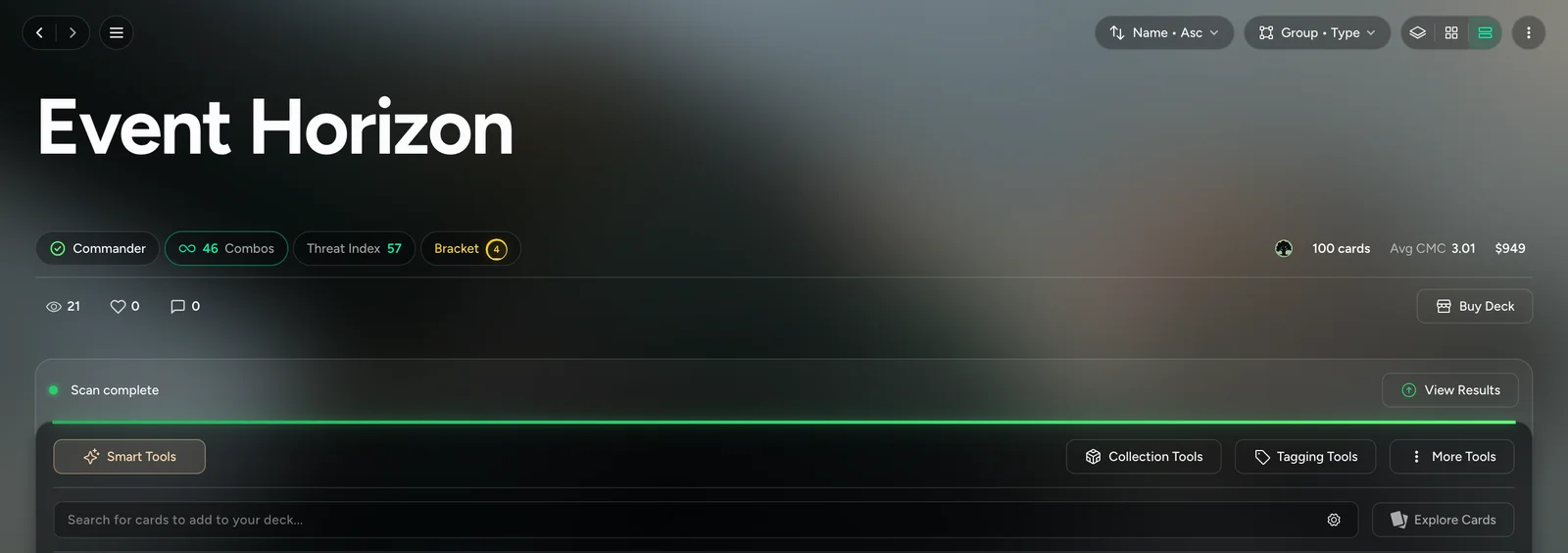
The header shows the state of your deck at a glance: the format (with a check mark when it's legal), combos, the Threat Index and Bracket (Commander only), card count, average mana value, and total cost. Click Check Combos and DeckCheck runs your list through Commander Spellbook, for free.
The progress dock at the bottom always tells you the next step. It says things like "Add 12 more cards (88/100)", "Trim deck to 100 cards", or "Deck complete. Ready for scan". If you're ever not sure what to do next, look there.
Adding cards. Type in the search bar and press Enter to add the top result, or use the arrow keys to pick another. The gear next to the search bar sets where new cards go: Mainboard, Sideboard, or Considering. Considering is your maybeboard, and you should use it a lot. Every suggestion from the smart tools can go there too.
The card menu. Every card has a ⋯ menu. Change the printing (foil and etched included), set it as your preferred printing, add it to your wishlist, move it between boards, or make it your commander, partner, or companion.
Views and grouping. The top bar sorts by name, price, or mana value. It groups by type, tag, color, or mana value, and it switches between stacked, grid, and list views. After a Threat Index scan, there's one more grouping, which I'll get to below.
Tags. Tagging Tools → Auto-tag cards tags the whole deck for free. To tag by hand, pick a tag in the palette bar and tap cards to paint it on. Press Esc when you're done.
Stats. Scroll down for Starting Hand (draw sample hands, or open Draw Odds to work out your chances of drawing what you need by a given turn), the mana curve, and Color Requirements, which compares the colors your spells cost with the colors your mana makes.
Sharing and buying. Actions → Share copies the deck link, and Print Deck Card makes a printable card with a QR code that opens the deck. Buy Deck sends the list to TCGplayer, ManaPool, Card Kingdom, or CardMarket, and it can skip basics and the cards you already own. Actions → Visibility sets the deck to Public (it shows up in search), Unlisted (link only), or Private.
Read your deck: the DeckCheck Threat Index
For Commander, the first thing I'd do with any deck is scan it. Once the deck hits 100 cards with a commander set, the progress dock shows Scan Deck. A scan costs 5 credits, which is exactly what you get free every day.
Here's what comes back.
A bracket and a score. The DeckCheck Threat Index (DTI) puts your deck in one of the five official Commander Brackets and gives it a score from 0 to 96. It starts from the official rules (Game Changers, mass land denial, extra turns, early combos) and can only move a deck up from there, never down.
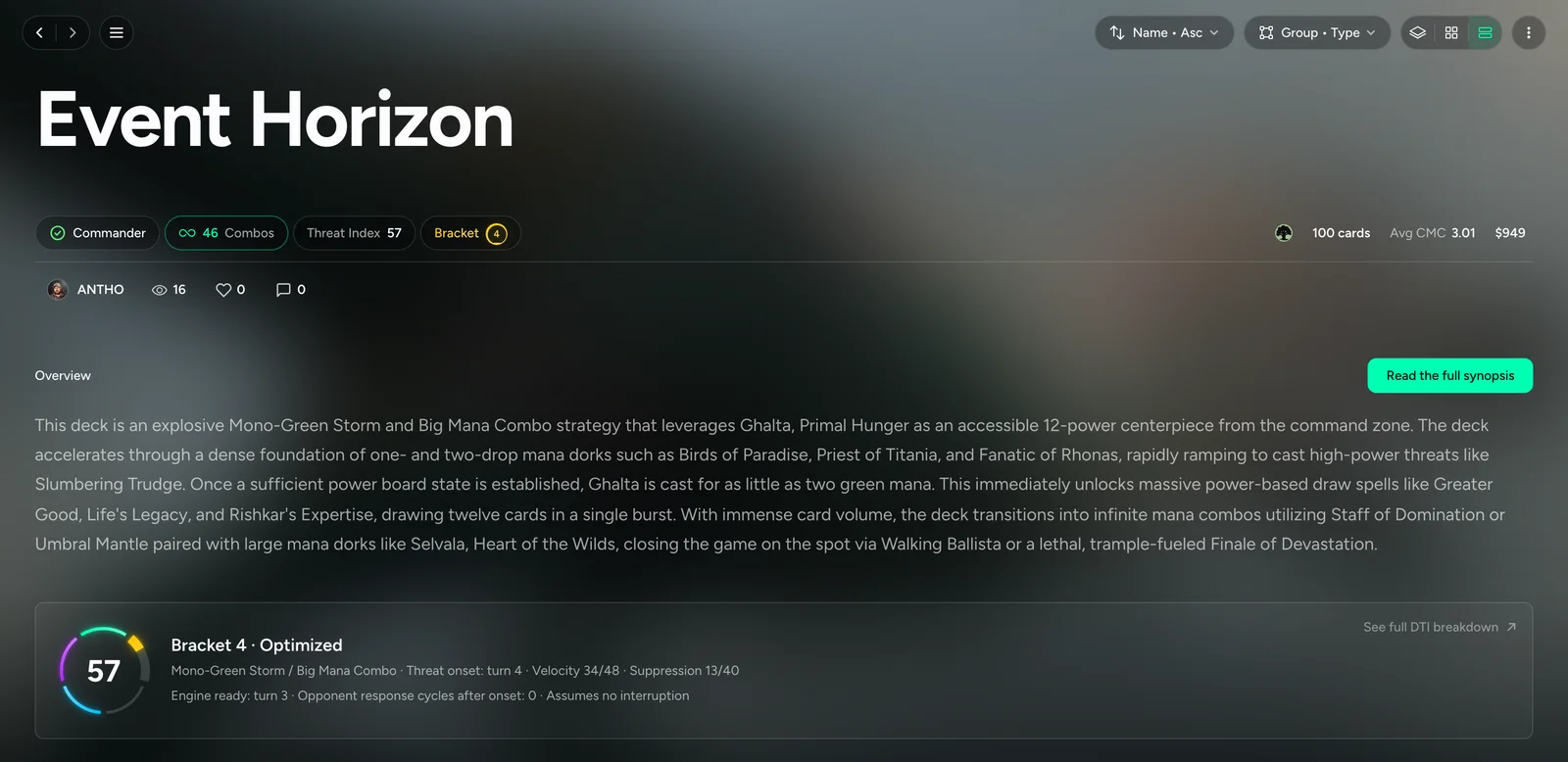
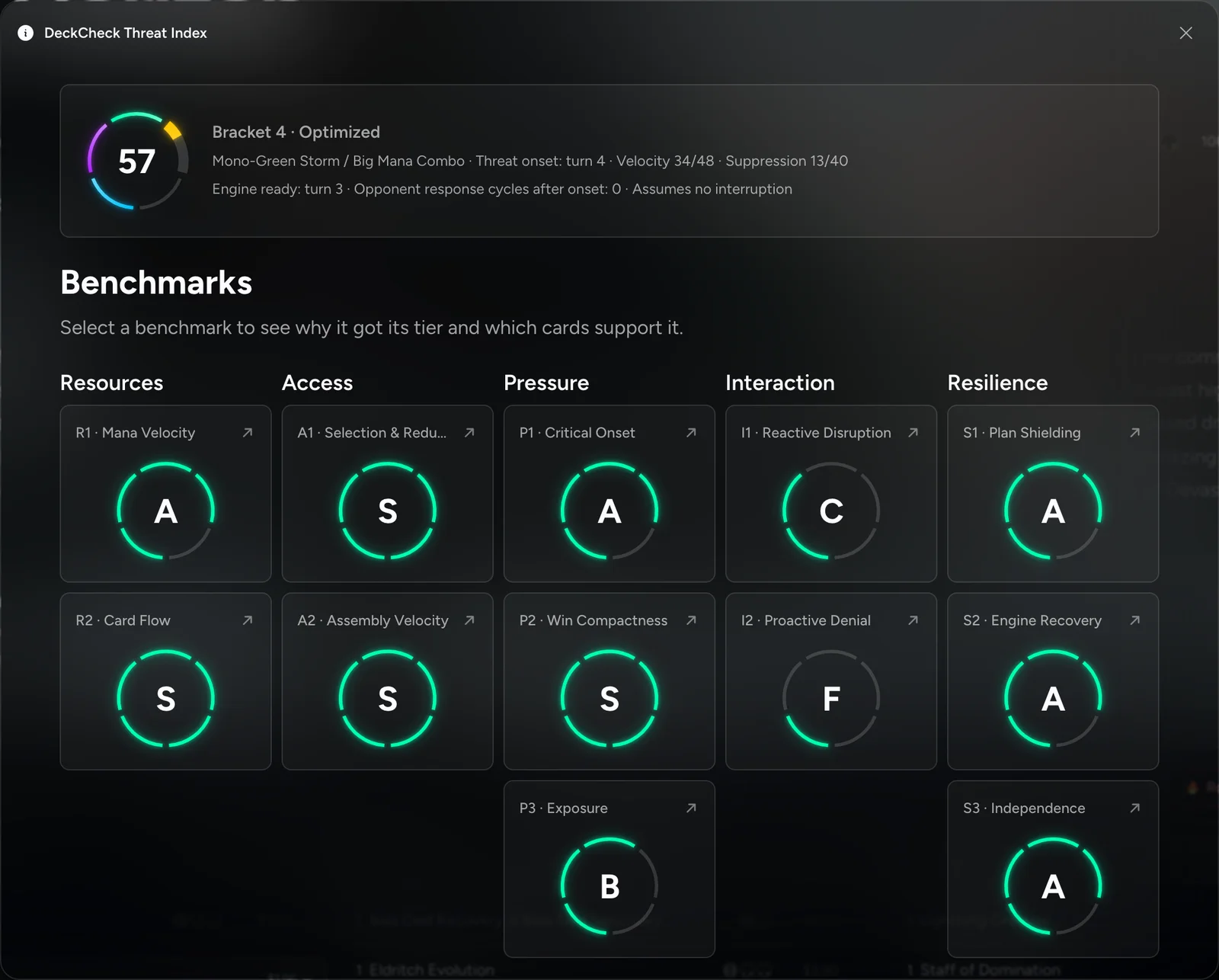
Twelve benchmarks. Click the Threat Index pill in the builder, or See full DTI breakdown on a deck page. You'll see how the deck does on twelve questions in five groups: Resources, Access, Pressure, Interaction, and Resilience. Each one gets a tier from S to F.
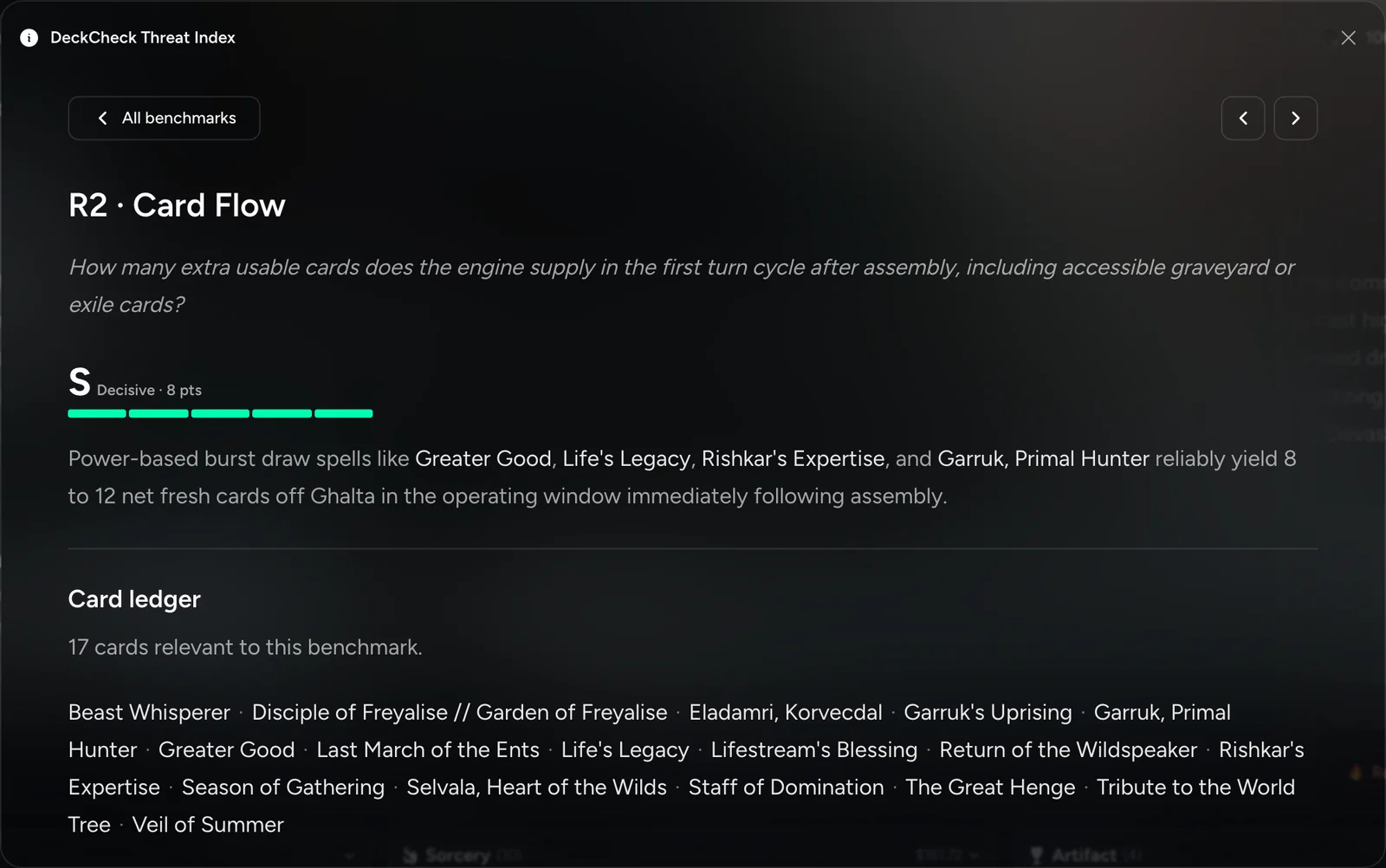
The card ledger. This is the part most people miss. Click any benchmark and you get the reason for its tier, plus every card that earned it. If your card flow comes back a C, the ledger shows you which cards are doing the work, so you know exactly what to add to or swap out.
A written synopsis. View Results in the progress dock opens the full write-up: an overview of what the deck does, a primer on how it wins, its weaknesses, and its key cards.
And here's the grouping I promised: after a scan, set the builder to Group → Threat Index. Your deck list sorts itself into the twelve benchmarks, so you can see which cards carry which job while you build.
A few things worth knowing:
- Add context. The confirmation popup before a scan has an "Add context for the AI" box. If your deck has a plan that isn't obvious from the list, say so there. DeckCheck saves it with the deck, so you can reuse it next time.
- Rescan after changes. When you edit the deck, the dock switches to Rescan.
- Scan it again, even if nothing changed. Each scan of the same list unlocks its Omni-Score. Each benchmark takes the middle tier of your scans, so one odd read moves the score less, and none of your earlier scans go to waste. The Omni-Score becomes the deck's Threat Index everywhere on DeckCheck. Essentially, more scans = more accurate DTI. Click Rescan at the bottom of the Threat Index panel. I explain the details in how the Threat Index works.
- Disagree? Open a benchmark, scroll to Disagree with this tier?, and pick the tier you'd give it. Then rate the result on the first page. It's free, and it's the best way to tell me a read is off.
- It's a starting point, not a verdict. AI grades the twelve benchmarks, and fixed rules do all the math after that. Like any read of a deck, a single scan can move a tier, which is exactly what the Omni-Score smooths out. The point is that everyone at the table starts the Rule 0 conversation from the same place.
- Other formats get a scan too (overview, primer, weaknesses, and key cards), but no score or bracket.
Want to poke around a real one? Here's my Ghalta deck:
If you want the full method, I wrote up how the Threat Index works, and the Commander Brackets guide covers the official brackets themselves.
Find cards that fit: Explore Cards
Right next to the builder's search bar is a button called Explore Cards. If you take one thing away from this guide, make it this button. It holds five ways to find cards, and every one of them is free.
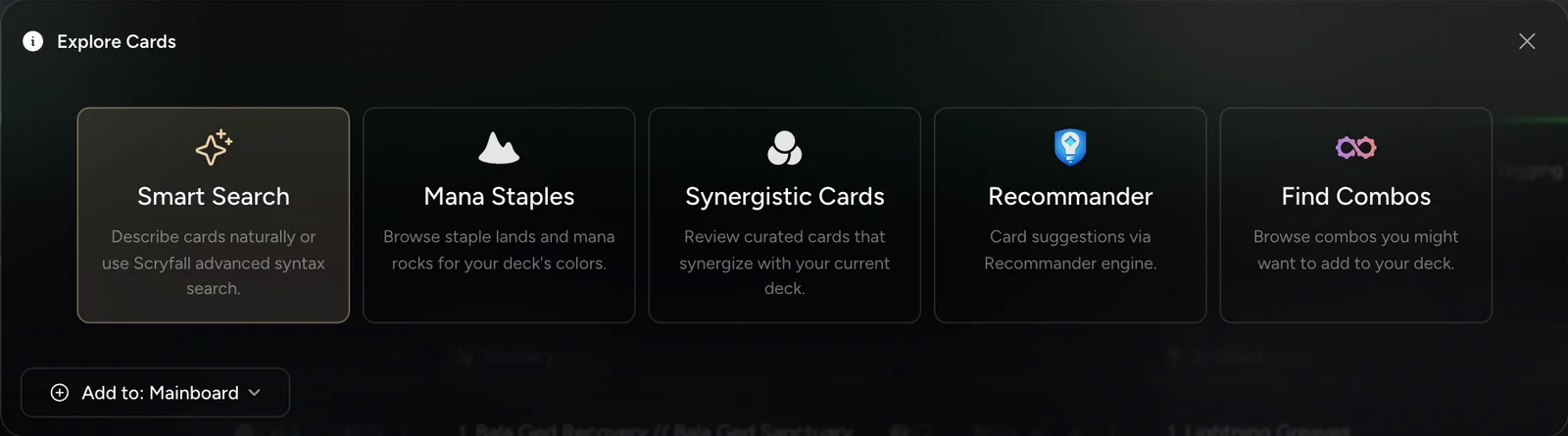
| Mode | What it does | Formats |
|---|---|---|
| Smart Search | Describe cards in plain English, or use Scryfall syntax | All |
| Synergistic Cards | DeckCheck's own engine: cards that fit what your deck already does | Commander, Brawl, Pauper Commander |
| Recommander | Our partner engine's picks for your exact list | Commander |
| Mana Staples | Staple lands and mana rocks for your colors, with a price cap | All |
| Find Combos | Combos you're one card away from completing | All |
The first time you open it, you pick a mode from a grid. After that, the modes become tabs, and Explore Cards reopens on whichever one you used last.
Smart Search
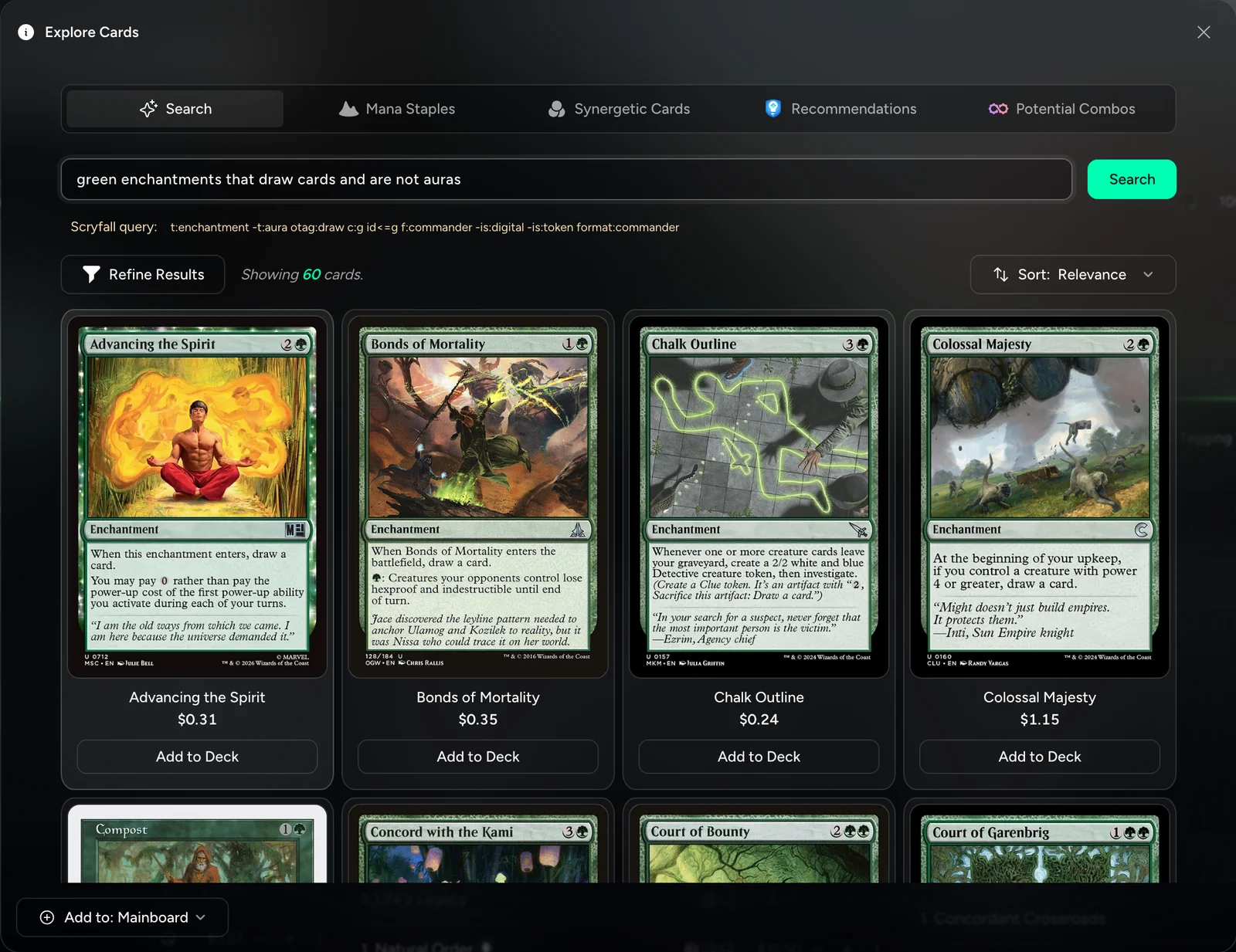
Scryfall is awesome, but it has a learning curve and needs a separate tab. Smart Search puts it in the builder and lets you type what you mean: "green enchantments that draw cards and are not auras", "cheap artifact ramp", "creatures that care about +1/+1 counters". It writes the Scryfall query for you and shows it, so you pick up the syntax as you go. Already know Scryfall syntax? Type it in and it goes straight through.
Results stay inside your commander's color identity and your format, so everything you see is something you can actually play.
Synergistic Cards
DeckCheck's own engine. It reads the cards already in your deck and suggests cards that work with them, not just what's popular for your commander. Cards you already run are hidden.
Recommander
This is the integration I'm proudest of, and the one most people never click. Recommander is our partner engine. It reads your commander and every card in your main deck, then scores cards for that exact list. Two decks with the same commander get different picks, because the picks come from your list, not the average of everyone else's.
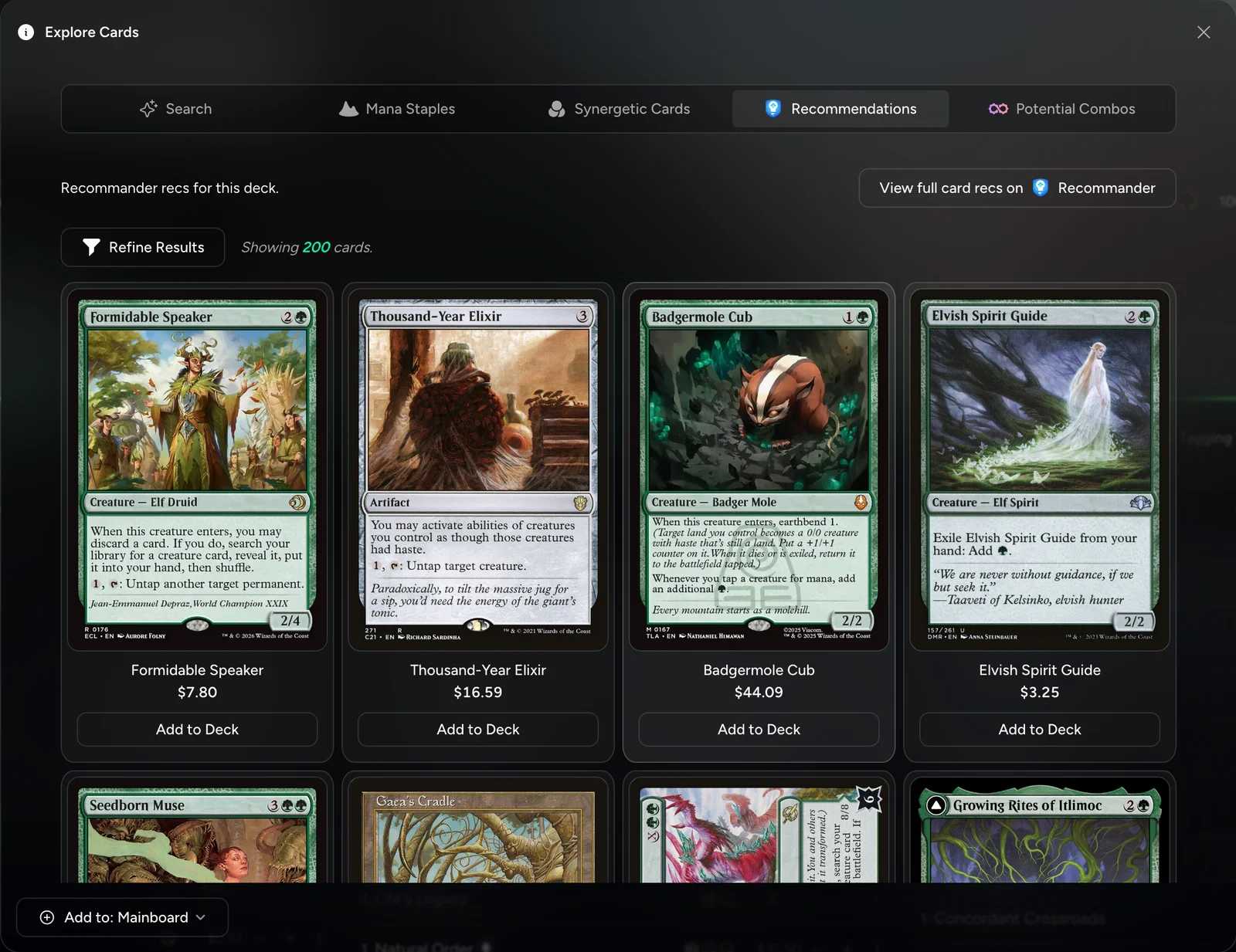
How to use it:
- Click Explore Cards, then Recommander. Once you've used it, it's the Recommendations tab.
- Open Refine Results to narrow the list: max price per card, rarity, card type, and Owned only if you track your collection.
- At the bottom, choose where adds go (Mainboard, Sideboard, or Considering), then hit Add to Deck on anything you like. Adds use your preferred printing.
A few tips:
- Send picks to Considering first. Then look at them side by side before you cut anything.
- Results are saved for each version of your deck. Changed a lot since the last look? Shift+click the tab to refresh.
- View full card recs on Recommander opens the full Recommander page for your deck on recommander.cards.
Recommander also works behind the scenes. PowerTune, ManaTune, and Deckhand Chat pull from both engines, and cards that DeckCheck and Recommander both suggest rank first. You can read more about the integration in What If Card Recs Were Better?
Mana Staples and Find Combos
Mana Staples lists staple lands and mana rocks for your colors, with a max price slider, so fixing a mana base on a budget takes a minute. Find Combos shows the combos you're one card away from. If you track your collection, it can show just the combos you can finish with cards you already own.
Tune it: PowerTune, ManaTune, and DeckTrim
These live behind the Smart Tools button in the builder. Each one reads your deck, suggests adds and cuts, and gives a reason for every one.
PowerTune moves a deck toward the bracket you want (Commander only). Pick a Target Bracket, up or down. Then set your rules: exclude Game Changers, allow banned cards (for your Rule 0 table), a price limit per card, a total budget for all the adds combined, or Use My Collection to only suggest cards you own. PowerTune needs a Threat Index scan first, because it starts from your deck's current read.
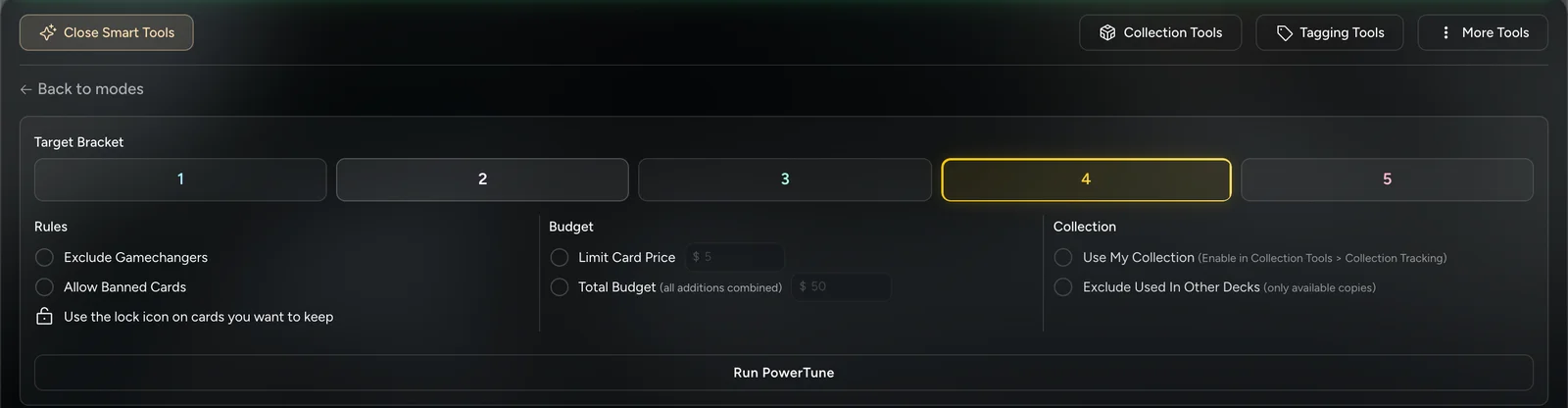
ManaTune works on your lands and ramp, in any format, with the same budget and collection options.
DeckTrim is for the deck sitting at 112 cards. It tells you what to cut, and why. It works when you're up to 50 cards over.
Reviewing the suggestions. Results show up right in your deck list. Each suggested add gets ✓ (add it), ↓ (send it to Considering), or ✗ (skip it). Each suggested cut gets ✓ (cut it), ↓ (send it to Considering), or ✗ (keep it). Accept All does what it says, and See full response opens the full write-up with every reason.
AI Tools History (in the Smart Tools menu) keeps your last 20 results for each deck. Reinject puts an old PowerTune, ManaTune, or DeckTrim result back into the deck list, and Revert Back restores the deck to how it looked at a past scan. Think of it as an undo button for a whole tuning session.
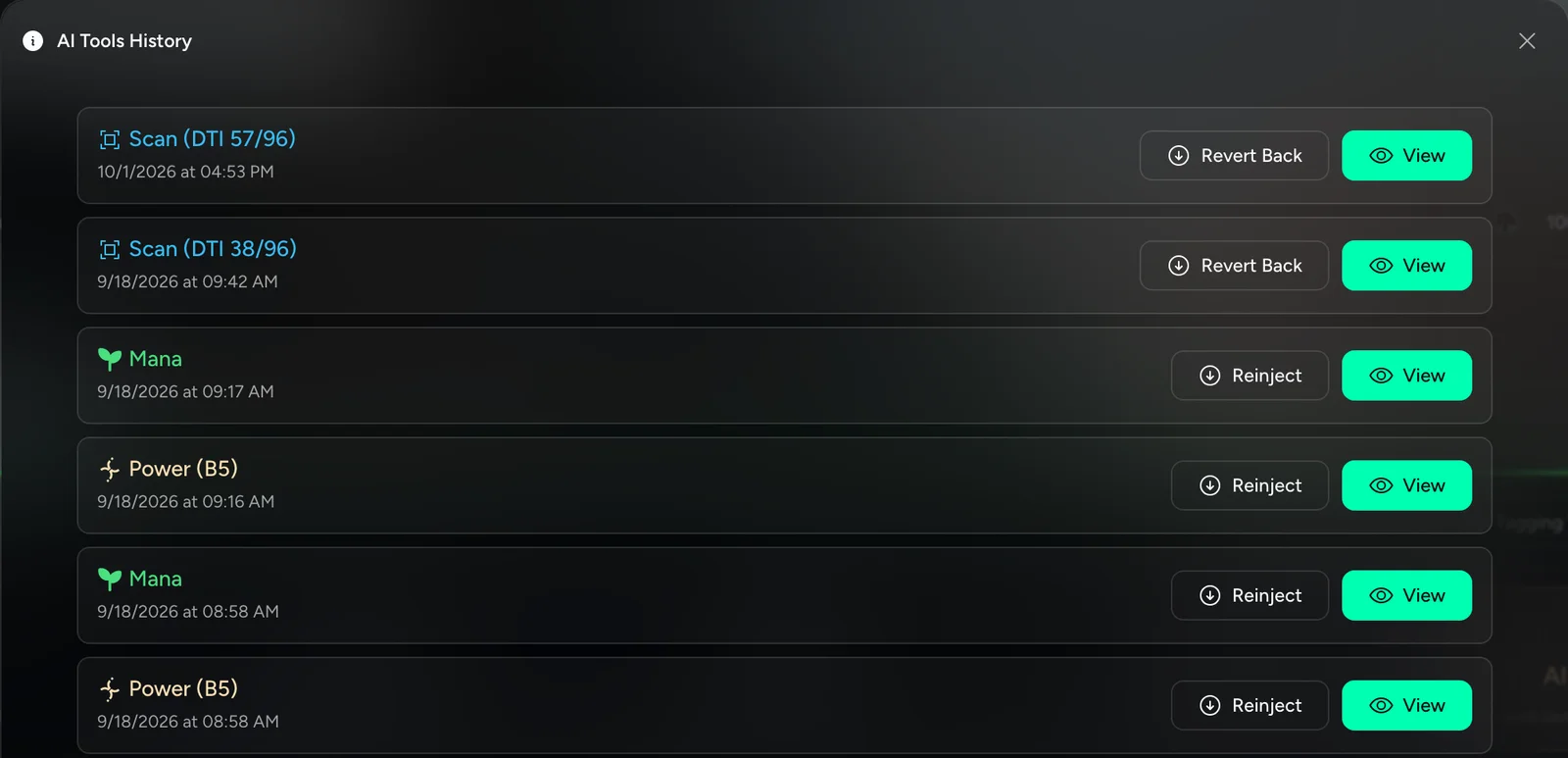
Each run costs 5 credits on Best or 1 on Eco.
And then there's the Roaster, also under Smart Tools. It roasts your deck. It's free, it's brutal, it has an Allow Profanity toggle, and people keep telling me it's weirdly useful. Roasts aren't saved, so screenshot the good ones.
Ask the Deckhand
The Deckhand is a service that watches Magic for you, and it also helps you build when you ask. It has three parts.
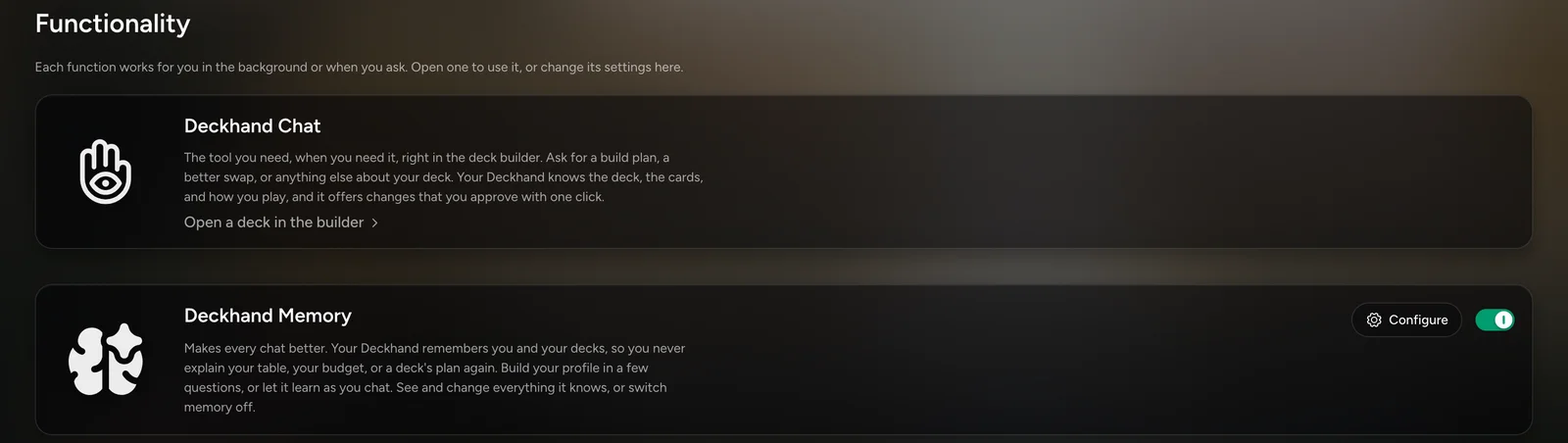
Deckhand Chat. In the builder, click the Deckhand button and ask anything about the deck in front of you. "What's my weakest card draw?" "Make this cheaper without losing the combo." "Is this a 3 or a 4?" When it suggests a change, you get Yes or No, and Undo after. It never changes your deck on its own. It can also offer to open PowerTune, ManaTune, DeckTrim, or a scan for you, and those still ask before they spend any credits.
Chat is metered: your first message uses 1 credit, and that credit covers a run of messages. Longer conversations use more.
Deckhand Memory is free and on by default. The Deckhand remembers what you tell it: your table, your budget, your pet cards, the cards you never want suggested, and the plan for each deck. Open Deckhand in the menu, then Configure on the Memory card, to see everything it knows, delete any fact, or click Build my profile and answer a few questions up front.
Set Impact is for subscribers. A few days before each set's prerelease weekend, the Deckhand checks every new card against your Commander decks and sends you a report of the ones worth a look, with a reason for each deck. A second report follows a few weeks after release. There's also a Custom report that sends your Deckhand back in time: pick any past set and see what it would have flagged. Set Impact watches the Commander decks you've worked on in the last year (up to 20), and you choose which ones in Configure.
The Deckhand launch post has the full story.
RuleCheck: answers for your exact situation
RuleCheck lives in the menu under Tools. Type your exact question, add the cards involved, and it answers from the Comprehensive Rules. It quotes the rules that apply, with their numbers, then explains how they apply to your situation.
To get the best answer:
- Ask about the whole situation, not just a keyword. "If I cascade into Fell the Profane, can I cast the back face?" beats "cascade MDFC".
- Add every card involved in the "Optional: add relevant cards" box. RuleCheck reads their exact text.
- Send it with the arrow, or Cmd/Ctrl+Enter.
Here's a real one. I asked whether I could cast the land side of [[Fell the Profane // Fell Mire]] off a cascade. RuleCheck pulled rules 702.85a (cascade), 712.8a (a double-faced card outside the battlefield or stack has only its front face), and 712.11b (you choose a face when you cast it).
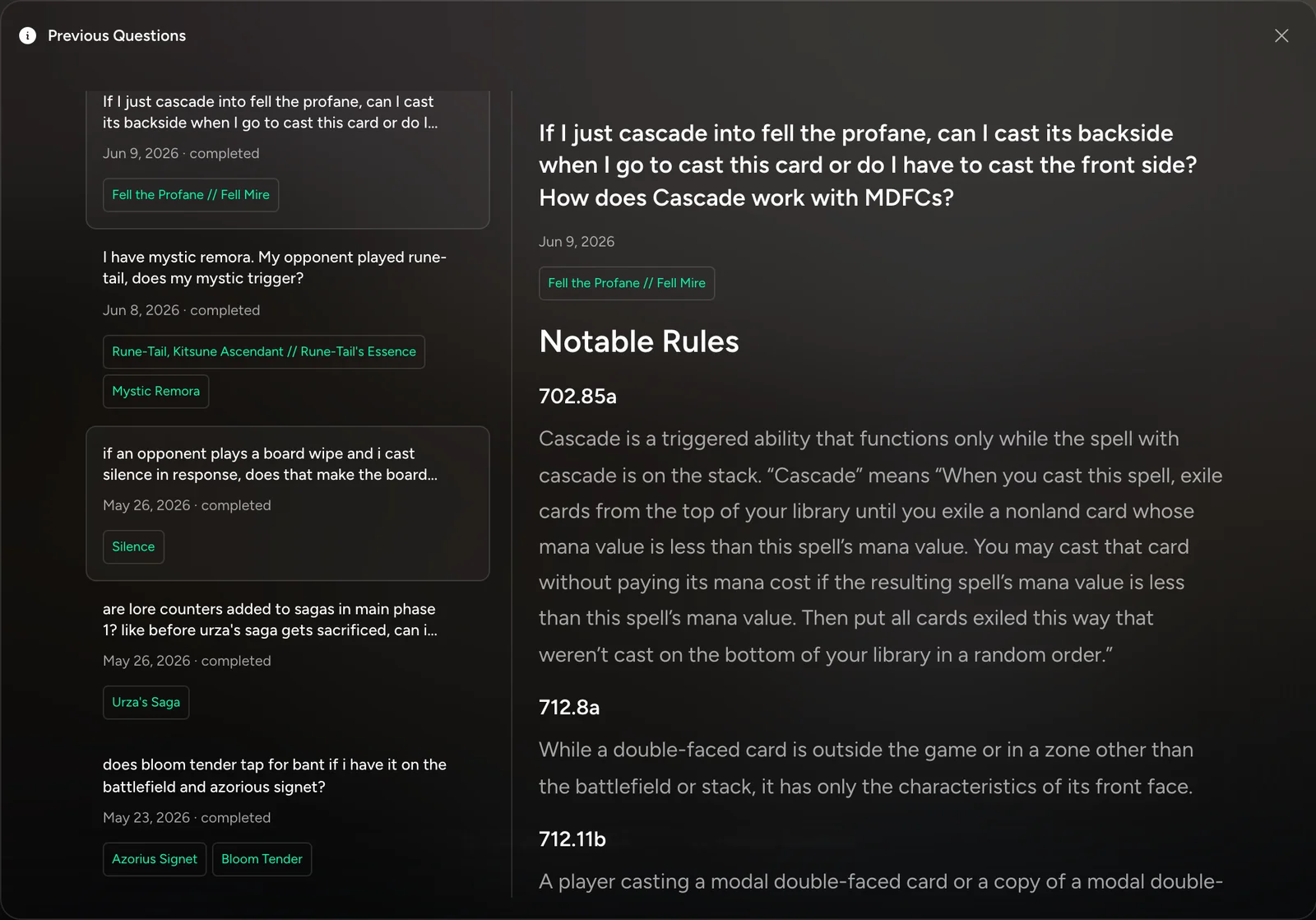
Here's where it landed:
Therefore, you must cast the front side (the instant) if you choose to cast the card at all. The back side cannot be cast via cascade because it is not a spell and cascade only allows casting spells, not playing lands.
Each question costs 1 credit. Previous Questions keeps your last 50, with Ask Again for follow-ups. And Complete Rulebook is the full Comprehensive Rules, searchable, for free.
One honest caveat: RuleCheck explains the rules. It's not a judge call. At a tournament, the judge on the floor has the final word.
Your collection
Getting cards in. Open Collection → Add Cards. There are three ways in:
- Scan Cards uses your phone or webcam, with card recognition by Convoke. Free accounts get 250 scans a month, and scans don't use credits.
- Bulk Import takes a pasted list or a CSV from ManaBox, Moxfield, or Archidekt. You can import into your collection and a deck or binder at the same time.
- Lookup Cards adds cards one at a time.
Binders. Make binders for trades, for each deck, or for your bulk. Share a binder with a link, or print a binder card with a QR code. People you share with never see what you paid or which cards are proxies.
Smart Binders (subscribers) fill themselves. Add up to 10 rules (price, rarity, finish, set, color identity, card type, and more), and the binder stays current as your collection changes. Free accounts can try the rules in a preview.
Where it really pays off: your collection inside your decks. In the builder, open Collection Tools and turn on Collection Tracking. Then:
- Get Missing Cards List shows what you still need, and Add missing cards to wishlist saves all of it in one click.
- Use Owned Prints switches the deck to the printings you actually own.
- PowerTune's and ManaTune's Use My Collection only suggests cards you own. Exclude Used In Other Decks only counts copies that aren't already sleeved up in another deck.
- Explore Cards gets an Owned only filter, so Recommander can shop your binder.
- Mark proxies with Track As: Proxy in the card menu.
Wishlist. Add cards from the card details popup, from a deck page, or with the builder's missing-cards option. The wishlist shows the cost to finish each deck, lets you set a priority, and lets you Set price alert so you get a notification when a card drops to your price. When a card lands in your collection, it leaves the wishlist on its own.
Playtest, compare, and play
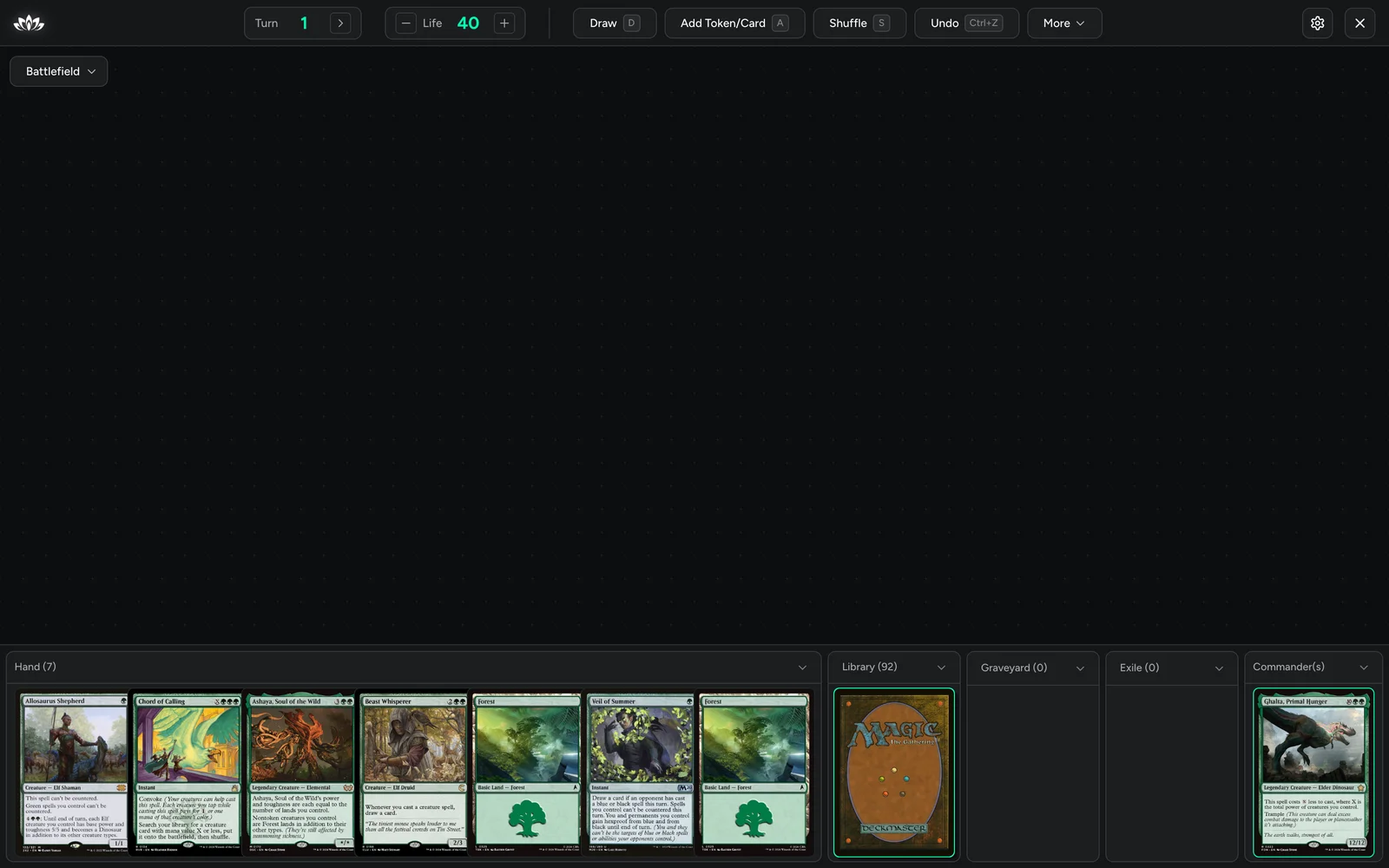
Playtester. Open Actions → Playtest on any deck, or click Playtest in the Starting Hand section to keep the hand you just drew. It's built for the keyboard: D draws, T taps, U untaps everything, N goes to the next turn, G, E, and H send a card to the graveyard, exile, or hand, and ? shows every hotkey. Subscribers can customize their sleeves and playmat.
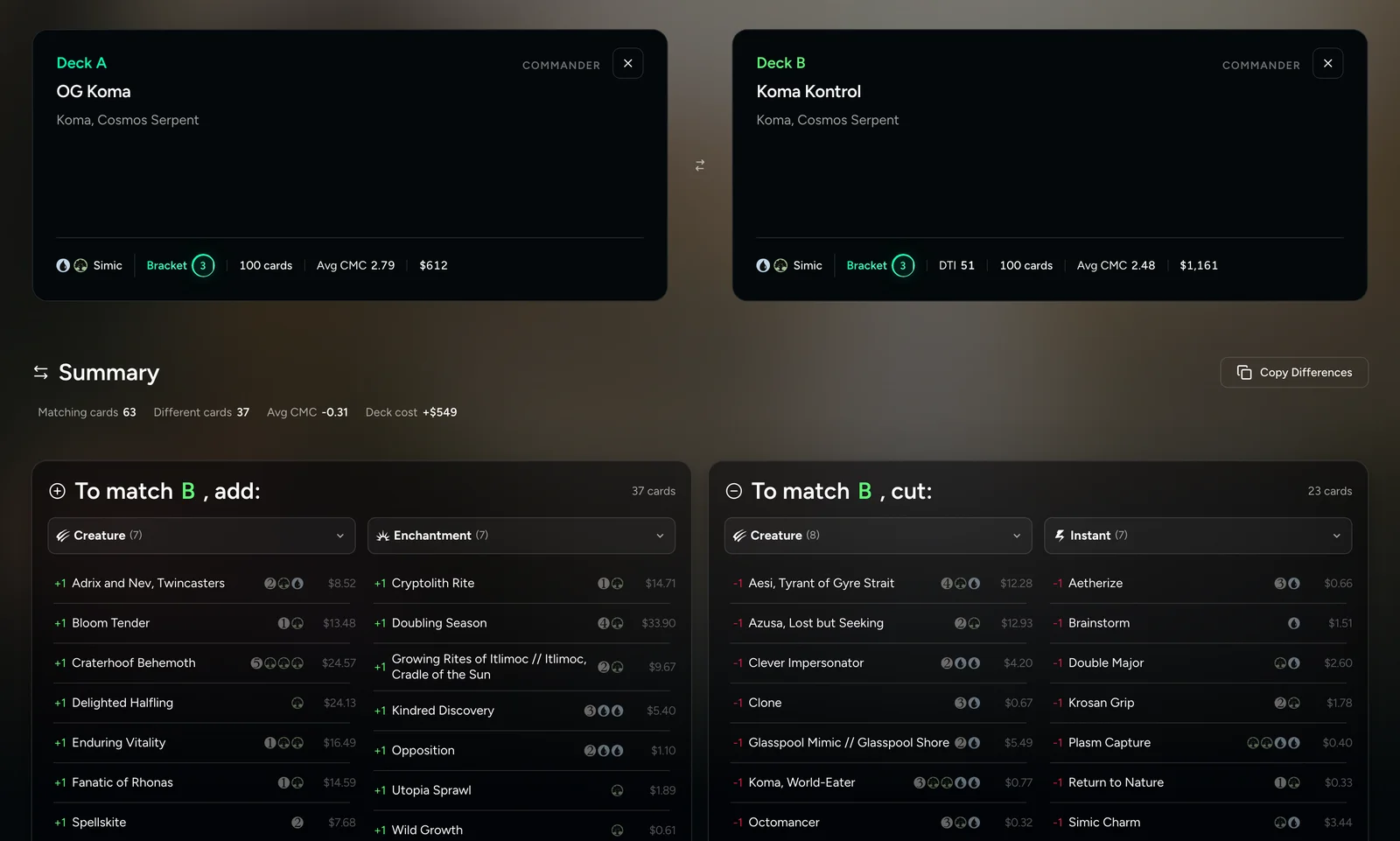
Compare. Paste any two DeckCheck links into Compare (or use Actions → Compare from your deck). You get the matching cards, the exact adds and cuts to turn deck A into deck B, the curve and cost difference, and Copy Differences for a clean change list. It's the fastest way to see how far your upgraded precon has drifted from the original.
Play online. Browse Lobbies in the menu finds webcam games through our partner Convoke.
Bracket events at your local game store. If your LGS runs events on DeckCheck, you register on the event page with a deck from your account (or a Moxfield or Archidekt link), and DeckCheck checks it against the event's bracket right there. You'll know whether your deck fits before you show up.
Credits, Best, and Eco
The deck builder is free. Credits only pay for the smart tools, because every run costs real money to compute. Every account gets 5 free credits a day, and they reset at midnight UTC.
| Tool | Cost |
|---|---|
| Threat Index scan | 5 credits (always Best) |
| PowerTune, ManaTune, DeckTrim, and scans in other formats | 5 credits on Best, 1 on Eco |
| RuleCheck | 1 credit |
| Deckhand Chat | 1 credit covers a run of messages |
| Smart Search, Synergistic Cards, Recommander, Mana Staples, Find Combos, Check Combos, Auto-tag, the Roaster, Commander Quest, Compare, and the playtester | Free |
Best or Eco? Best is the default and gives the most accurate response. Eco uses 1 credit instead of 5, but response quality and accuracy can drop. A good rule of thumb: Eco for a quick first pass, Best for the decision you actually care about.
You only pay for results. DeckCheck reserves the credits when a tool starts and charges them only when the result comes back. If a run fails, nothing is charged.
Want more? Subscriptions (Spellslinger, Sage, and Archmage) add monthly credits that roll over, plus Smart Binders, the Deckhand's Set Impact reports, playtester customization, and more card scans each month. DeckCheck Mana is one-time credits that never expire. Everything's on Get More.
That's the tour
If you only do three things today: import a deck, scan it, and open Explore Cards. That's five minutes and your five free credits, and you'll know more about your deck than you did this morning.
If something in here is out of date, or you found a trick I didn't mention, tell me in the comments. This guide grows with the site.
Happy brewing.
Keep reading
DeckCheck vs Moxfield vs Archidekt vs ManaBox: Which MTG Deck Builder Is Best?
New to Magic and not sure where to build your decks? Here's how DeckCheck, Moxfield, Archidekt, and ManaBox compare, where each one shines, and why I think DeckCheck is the best place to start.

Quality Maxxing
Starting December 1, Eco is going away, every tool runs at the best quality I can offer, credits get simpler, and every plan gets the same or more.
Multiverse Reforged Upgrade Guide: Turn Every Jace Flip Into a Haymaker
Jace, Multiverse Architect puts a repeatable Polymorph engine in the command zone, but half the precon's creature pool sabotages the flip. Here is how to purge the duds, fizzle-proof your tokens, and make every spin lethal at $25, $50, and $100.
Comments
…